ESP8266 Evil Twin Wi-Fi Project
Wiring Schematic
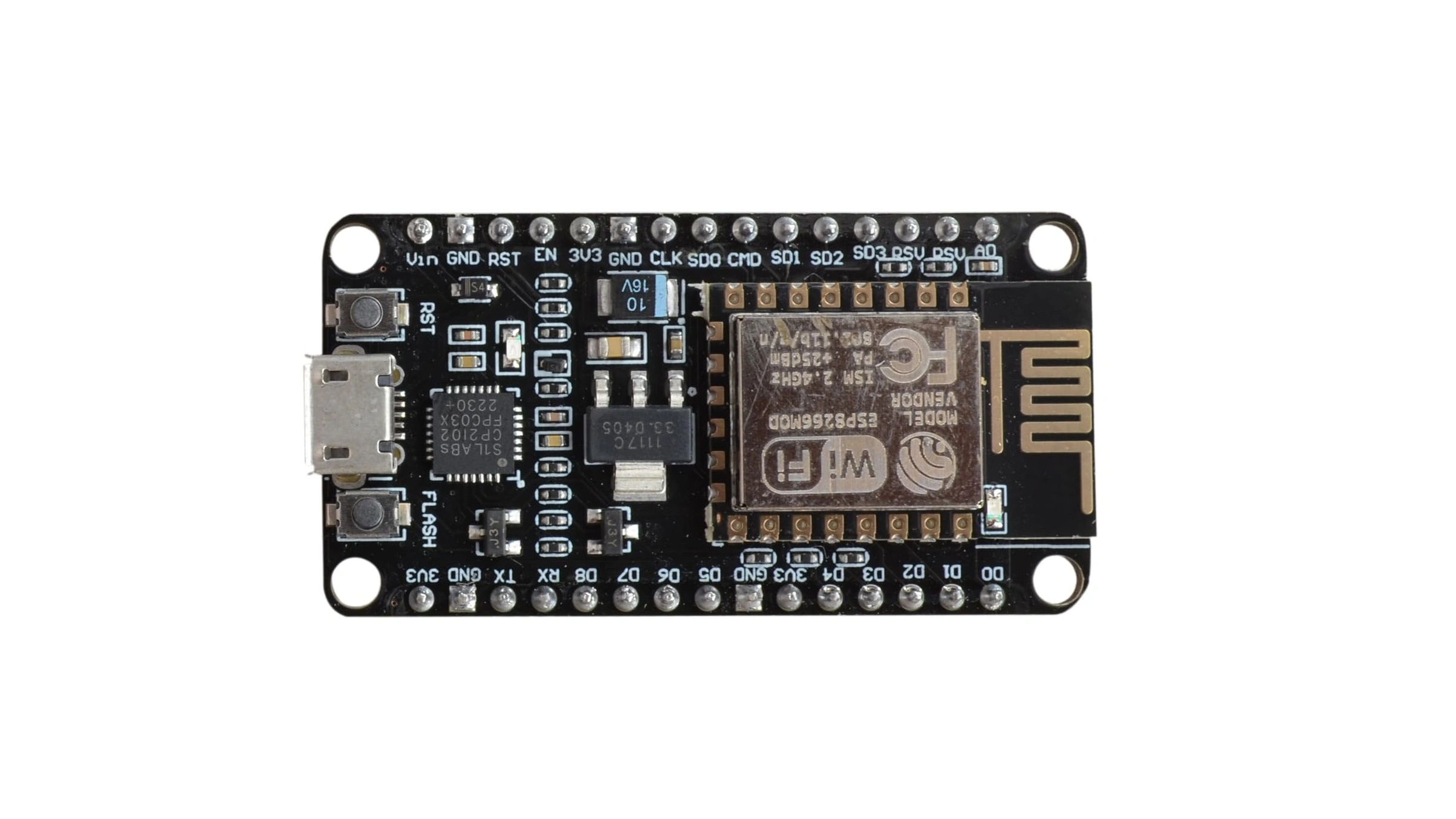 View full-size circuit ↗
YOUR PROJECT LEARNING PATH
Build it with confidence.
Project overview
Know what you’re building before you start wiring.
Study the ESP8266 Evil Twin WiFi project as a wireless-security research demonstration involving Wi-Fi scanning, access-point simulation, and captive-portal concepts. It uses an ESP8266 board and browser interface to examine how users judge network trust.
The supplied sketch includes a captive-portal password form and deauthentication functionality. These features create security risks, so review and modify the code before testing or publishing this project.
Use only authorized lab networks and devices. Never collect real credentials, impersonate third-party networks, or disrupt other users.
Components required
Gather these parts before you begin.
Build the project
Work through one focused step at a time. You can revisit any step whenever you need.
Prepare the ESP8266 Development Board
Place the ESP8266 board on a nonconductive surface and connect it to your computer using a data-capable Micro USB cable. Plan testing around networks and devices you own or have explicit permission to examine.
No external sensors or resistors are listed in the README. The project uses the ESP8266's built-in Wi-Fi hardware and browser-served interface.
Install Arduino IDE and Board Support
Install Arduino IDE and the ESP8266 Arduino Core, then select your exact board model and serial port. Official ESP8266 documentation describes scanning APIs for discovering nearby wireless networks.
The sketch also uses DNS and HTTP server components supported by the ESP8266 development platform. Check required headers and compilation messages in your local source.
Review the Original Security Research Code
Before uploading, inspect the sketch for its captive-portal password form, credential storage or logging, and deauthentication functionality. The supplied ZIP contains these behaviours, so its firmware should not be used unchanged.
Remove credential collection and network-disruption behaviour from your reviewed version before testing. Conduct experiments only within a controlled lab with explicit permission.
Prepare a Safe Demonstration Interface
For an educational demonstration, replace deceptive router-update messaging with a clearly labelled training page. Remove form handling that accepts real Wi-Fi passwords before testing the local interface or publishing the project.
Explain captive-portal concepts without impersonating real routers or storing secrets entered by visitors during the demonstration.
Test the Reviewed Project Safely
Compile and upload only after confirming credential collection and deauthentication features have been removed. Open Serial Monitor and inspect diagnostic messages while testing the revised dashboard within your authorized lab.
The expected safe result is network metadata and an educational page without password harvesting, third-party network impersonation, or forced client disconnection.
Software & tools
Install these before uploading the firmware.
Expected output
Compare your build with the result described here.
After a reviewed, safe version is uploaded, Serial Monitor can show startup messages and network scan results. The browser dashboard should present wireless metadata for authorized observation without requesting real Wi-Fi passwords.
The supplied ZIP is not in that safe state: its source includes a password submission form and deauthentication transmission code. Remove those functions before testing, demonstrating, or publishing the project.
Troubleshooting & fixes
Choose the issue that best matches what you’re seeing.
01Compilation fails in Arduino IDE
Confirm the ESP8266 Arduino Core is installed and select the correct board and serial port. Review compiler output and required headers; do not upload the original sketch unchanged.
02Wi-Fi scanning returns no networks
Test where wireless broadcasts are available, restart the board, and inspect serial diagnostics. Scan results provide observable network information only and do not establish authorization to interact with a network.
03Local dashboard cannot be accessed
Verify the reviewed build starts its HTTP server and use the address printed by Serial Monitor. Check the intended lab connection and ensure the demonstration does not imitate a third-party login page.