ESP32 Smart Battery Dashboard V2
Wiring Schematic
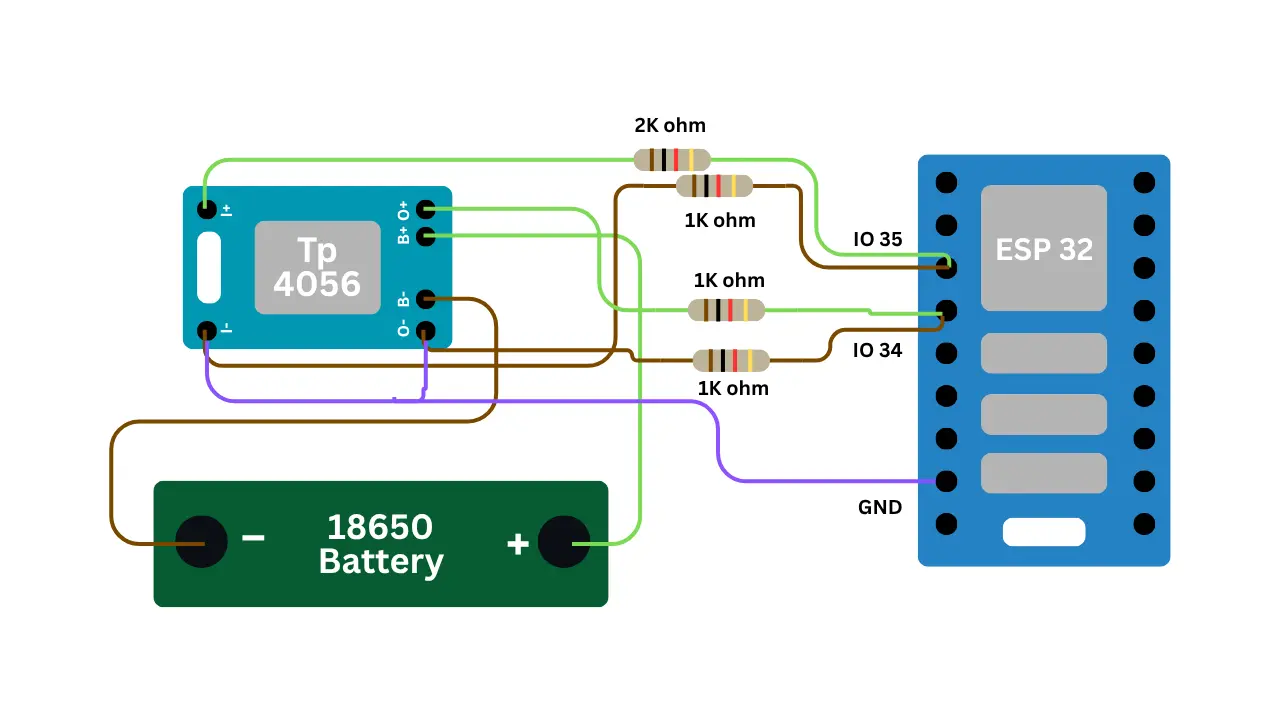 View full-size circuit ↗
YOUR PROJECT LEARNING PATH
Build it with confidence.
Project overview
Know what you’re building before you start wiring.
Build an advanced battery-monitoring system using an ESP32 and a rechargeable 18650 Li-ion battery with TP4056 charging hardware. It measures voltage and tracks battery behaviour through a responsive wireless dashboard for electronics learning.
The dashboard displays estimated battery percentage, voltage history, minimum and maximum voltage, average readings, session runtime, event logs, trends, and charger-input detection. Readings update automatically while the history and session analytics remain temporary.
Keep both divider outputs within safe ESP32 ADC limits. The dashboard's charger indicator detects input power, not confirmed active charging.
Components required
Gather these parts before you begin.
Build the project
Work through one focused step at a time. You can revisit any step whenever you need.
Prepare the Battery Monitoring Components
Place the ESP32, breadboard, 18650 cell, and TP4056 module on a nonconductive surface. Inspect the battery and charging-module terminals before wiring, and prevent accidental shorts during handling or assembly.
Use a single-cell Li-ion battery compatible with the TP4056 module. Its protection features vary by model, so check the board before use.
Build the Battery Voltage Sensing Circuit
Connect battery positive through one 1kΩ resistor to the GPIO 34 junction, then connect another 1kΩ resistor from that junction to GND. This creates the 2:1 divider expected by the firmware.
The sketch multiplies the measured ADC voltage by 2.0. Measure the divider output and ensure GPIO 34 remains within the appropriate ADC range.
Connect the Charger Input Sensing Divider
Connect the charger-input supply through a 2kΩ resistor to the GPIO 35 sensing junction, with a 1kΩ resistor from the junction to GND. This scales the input voltage for ADC measurement.
This detects charger-input presence, not actual TP4056 charging or charge-complete status. The dashboard may label input presence as charging in its displayed state.
Install Software and Configure Wi-Fi
Install Arduino IDE and the ESP32 board package, then configure the router Wi-Fi name and password in the sketch. The code uses the built-in WiFi and WebServer libraries, with no extra display library needed.
Select the matching ESP32 board and serial port, upload the sketch, and open Serial Monitor at 115200 baud to inspect connection status.
Open and Test the Battery Dashboard
Wait for router Wi-Fi to connect, then open the IP address printed in Serial Monitor from a browser on the same network. The dashboard fetches battery data from the ESP32 automatically.
Check voltage, estimated percentage, charging label, history graph, analytics, and recent events. The reset control clears session statistics and history held in memory, not saved records.
Software & tools
Install these before uploading the firmware.
Expected output
Compare your build with the result described here.
After upload, Serial Monitor at 115200 baud reports the Wi-Fi connection and local IP address. Open that address from a browser connected to the same router network to load the live dashboard.
The dashboard displays battery voltage, estimated percentage, a charger-input label, voltage history, minimum and maximum values, average voltage, session duration, voltage trend, stability, and the latest activity events with periodic browser updates.
Troubleshooting & fixes
Choose the issue that best matches what you’re seeing.
01Incorrect battery voltage or percentage
Check the two 1kΩ battery-divider resistors and the GPIO 34 junction. The firmware uses a 2.0 ratio; measure the ADC voltage, confirm the wiring, and calibrate percentage thresholds for the cell.
02Charging status appears incorrect
GPIO 35 measures the charger-input voltage through its divider, not TP4056 CHRG/STDBY pins. Check the 2kΩ/1kΩ network and understand that input presence can be shown as charging even when charging has completed.
03Dashboard fails to connect or update
Confirm the ESP32 joins the configured Wi-Fi network and copy the current IP from Serial Monitor. Check browser access, /data responses, and ESP32 power; restart after changing network credentials.