ESP32 OLED Chrome Dino Game
Wiring Schematic
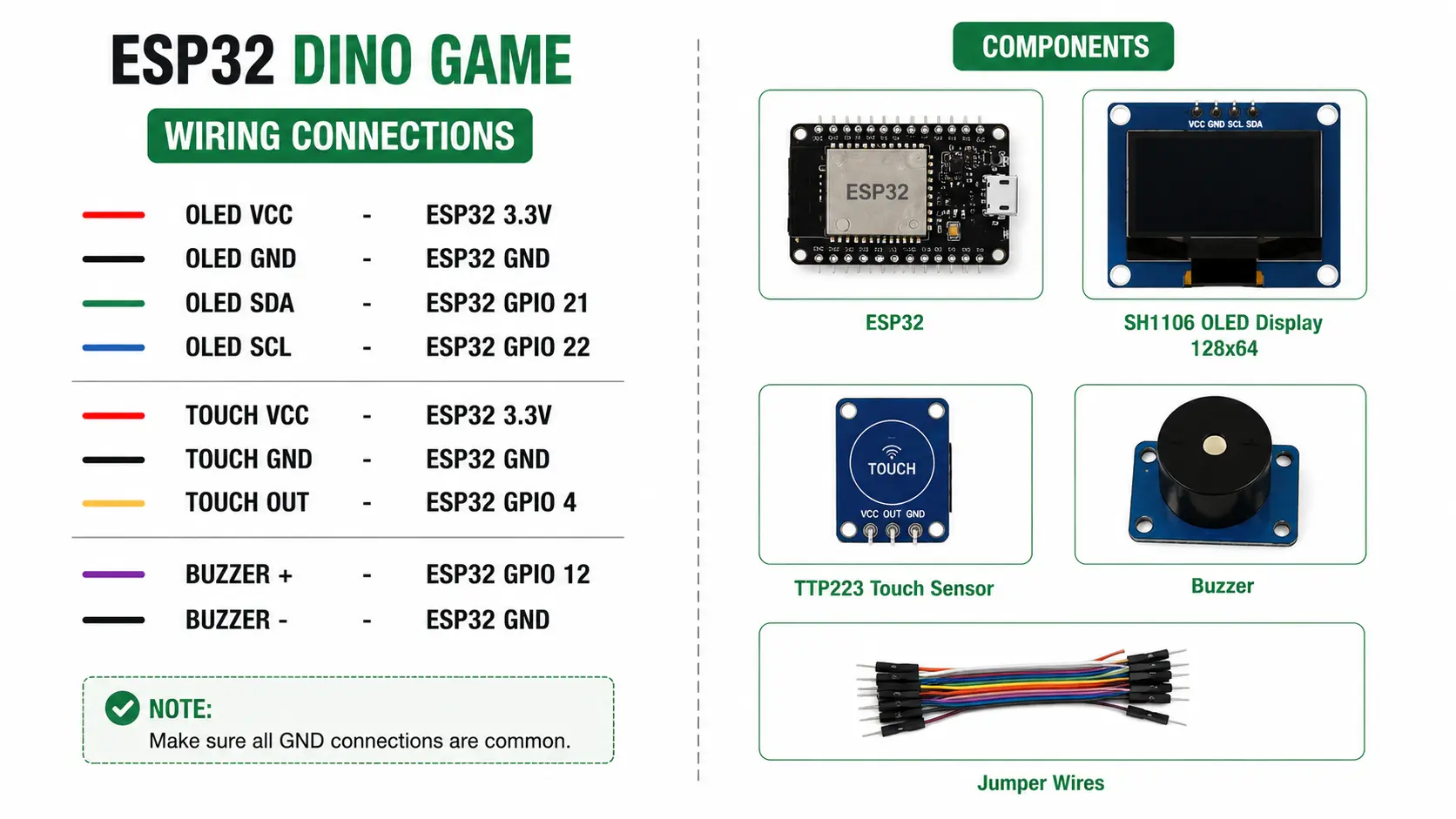 View full-size circuit ↗
YOUR PROJECT LEARNING PATH
Build it with confidence.
Project overview
Know what you’re building before you start wiring.
Build a Chrome-style dinosaur game using an ESP32 development board and a 128×64 SH1106 OLED display. Touch controls let you jump over cacti and flying enemies while tracking score and remaining lives.
The game includes collectible hearts, buzzer effects, a Game Over screen, touch-based restart, progressive speed, and automatic display inversion. It runs locally on the OLED without Wi-Fi or an external computer during gameplay.
Disconnect USB power before wiring. Use a compatible OLED supply and check GPIO 12 boot behaviour with your buzzer connected.
Components required
Gather these parts before you begin.
Build the project
Work through one focused step at a time. You can revisit any step whenever you need.
Prepare the ESP32 and OLED Display
Disconnect USB power and place the ESP32, OLED, touch sensor, and buzzer on a stable surface. Identify every module's power, ground, and signal pins before beginning the wiring process.
The display is a 128×64 SH1106 I2C module. Follow the supplied diagram and connect all grounds to ESP32 GND before applying power.
Connect the OLED Over I2C
Connect OLED VCC to ESP32 3.3V, GND to GND, SDA to GPIO 21, and SCL to GPIO 22. Verify each module label carefully before powering the circuit to avoid connection errors.
The firmware initializes I2C on GPIO 21 and GPIO 22 and contains its own display driver; no separate OLED library is listed.
Connect the TTP223 Touch Sensor
Connect touch sensor VCC to ESP32 3.3V, GND to common ground, and OUT to GPIO 4. Keep the signal wire secure and ensure the sensor output is compatible with the ESP32 input.
The firmware reads GPIO 4 as a digital input. Touching the sensor triggers jumps, and a touch after Game Over restarts the game.
Connect the Buzzer and Prepare Software
Connect buzzer positive to GPIO 12 and negative to ESP32 GND. Install Arduino IDE, select the correct ESP32 board and serial port, and keep the included header files beside DinoGame.ino.
The project contains its own game core and SH1106 driver. Wire and SPI are Arduino platform headers, not separately installed third-party libraries.
Upload Firmware and Play the Game
Upload DinoGame.ino, then open Serial Monitor at 115200 baud to view diagnostics. The game starts directly on the OLED; touch the TTP223 sensor to jump over upcoming obstacles during play.
Avoid cacti and flying enemies, collect hearts to recover lives, and continue as speed increases. After Game Over, touch the sensor to restart.
Software & tools
Install these before uploading the firmware.
Expected output
Compare your build with the result described here.
After upload, the game begins directly on the 128×64 OLED, showing the dinosaur, ground, obstacles, score, and three starting lives. Serial Monitor uses 115200 baud for startup diagnostics. The splash screen is disabled.
Touching the TTP223 makes the dinosaur jump; collisions reduce lives, and collectable hearts restore lives up to five. Speed increases every 256 score points, capped at 48 FPS, while display inversion changes every 1,024 points.
Troubleshooting & fixes
Choose the issue that best matches what you’re seeing.
01OLED remains blank or graphics appear corrupted
Check the OLED supply, GND, SDA on GPIO 21, and SCL on GPIO 22. Confirm the module uses an SH1106 controller and verify the I2C connector and jumper wires.
02Touch sensor does not trigger jumps
Check TTP223 VCC, GND, and OUT connections. Confirm its output changes to HIGH when touched and that OUT reaches GPIO 4, then retest with stable USB power.
03Buzzer is silent or ESP32 fails to boot
Verify buzzer positive connects to GPIO 12 and negative to GND. GPIO 12 is an ESP32 strapping pin, so a connected module may affect startup; test boot reliability and use a suitable passive piezo buzzer.