ESP32 Wi-Fi RGB Controller V2
Wiring Schematic
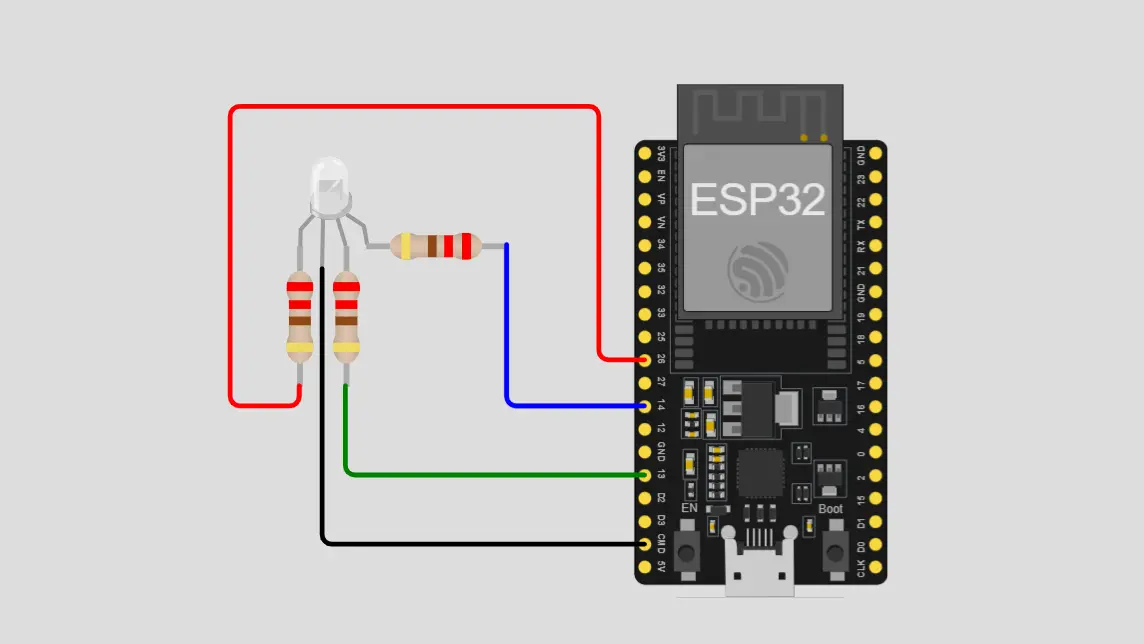 View full-size circuit ↗
YOUR PROJECT LEARNING PATH
Build it with confidence.
Project overview
Know what you’re building before you start wiring.
Build a professional wireless RGB LED controller using an ESP32 development board for interactive IoT learning. Adjust color channels through a responsive browser dashboard with improved controls and visual feedback.
The ESP32 hosts a web server that accepts color commands and controls LED brightness using PWM. Six color presets, live HEX values, and a one-click shutdown button expand control options.
Disconnect USB power before rewiring. Use separate current-limiting resistors for each color channel and connect the common-cathode pin directly to ground.
Components required
Gather these parts before you begin.
Build the project
Work through one focused step at a time. You can revisit any step whenever you need.
Prepare the ESP32 and RGB LED
Disconnect USB power and position the ESP32 board and RGB LED on the breadboard, leaving enough space for resistors, wiring, and convenient access during assembly and testing of your circuit.
Identify the common-cathode pin and individual red, green, and blue pins using the LED datasheet or component markings before wiring.
Connect the Shared Ground Reference
Connect ESP32 GND to the breadboard ground rail to establish a shared electrical reference for the circuit and provide a reliable current return path during normal operation of the RGB LED.
Connect the RGB LED common-cathode pin directly to ground, not through a shared resistor. Verify the pinout before applying power.
Wire the Three RGB Color Channels
Connect the red, green, and blue LED pins through separate current-limiting resistors to GPIO 26, GPIO 13, and GPIO 14 respectively, enabling independent brightness control for each color channel.
Use one resistor per channel and confirm every GPIO connection matches the firmware. Inspect wiring for loose connections or accidental shorts before powering the circuit.
Install Software and Configure Wi-Fi
Install Arduino IDE and the ESP32 board package, then confirm the platform includes the Wi-Fi and WebServer libraries required for networking, browser access, and remote LED control during operation.
Enter your Wi-Fi credentials in the sketch, select the correct ESP32 board and serial port, then compile and upload the firmware.
Open and Test the RGB Dashboard
Open Serial Monitor at 115200 baud and wait for Wi-Fi connection messages. Enter the reported IP address in a browser connected to the same network to load the controller.
Adjust the sliders, test all six presets, then press shutdown. The LED should follow color commands and turn off when shutdown is activated.
Software & tools
Install these before uploading the firmware.
Expected output
Compare your build with the result described here.
After uploading the firmware, open Serial Monitor at 115200 baud and observe connection messages. When the ESP32 joins Wi-Fi, note its local IP address and open it in a browser on the same network.
The dashboard shows red, green, and blue sliders, a live color preview, HEX value, six presets, and shutdown control. Slider changes update the LED color immediately, while shutdown should turn off all channels.
Troubleshooting & fixes
Choose the issue that best matches what you’re seeing.
01RGB LED remains off or shows wrong colors
Check common-cathode polarity and ground wiring. Confirm each color channel has its own resistor and GPIO 26, 13, and 14 match the sketch. Inspect the LED pinout and connections for loose wires.
02ESP32 fails to connect to Wi-Fi
Check the network name and password, including capitalization. Confirm network availability and signal strength, restart the board, and review Serial Monitor messages for connection errors or a missing IP address.
03Dashboard sliders or shutdown button fail
Confirm the browser and ESP32 share the same network. Verify the IP address, HTTP handlers, and RGB parameter parsing. Ensure shutdown sets the control flag and PWM updates set all channel outputs to zero.