ESP32 Mini Computer LIFE OS
Wiring Schematic
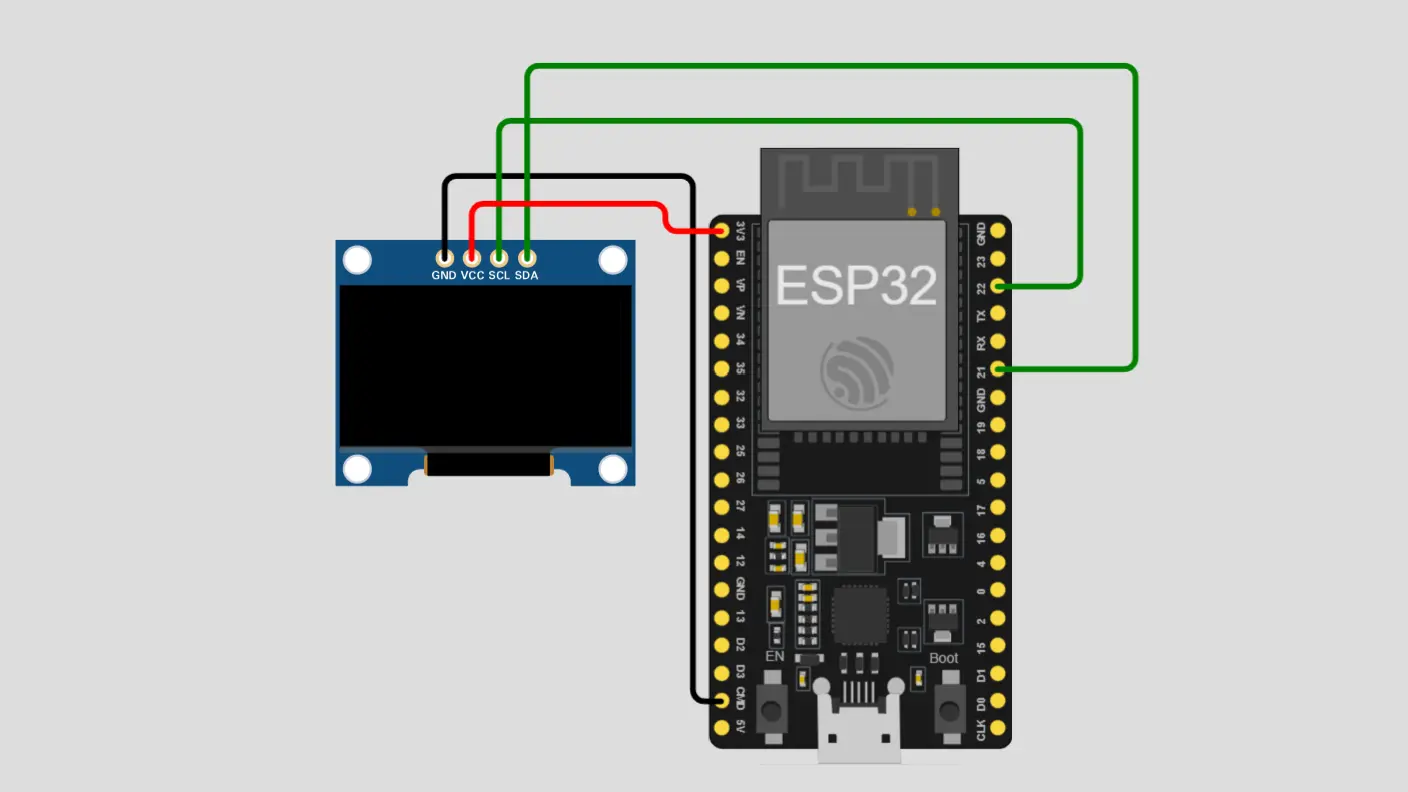 View full-size circuit ↗
YOUR PROJECT LEARNING PATH
Build it with confidence.
Project overview
Know what you’re building before you start wiring.
Build LIFE OS, a compact computer-style interface for an ESP32 board and 128×64 SSD1306 OLED. It combines small-screen apps with browser-based controls for a more complete embedded project learning experience.
Features include a PIN unlock screen, calculator, Snake and Dino games, notes, timer, clock/date, Wi-Fi information, settings, system details, and a mobile web dashboard interface.
Use a 3.3 V OLED supply, check I²C wiring, and change default Wi-Fi, hotspot, and PIN credentials before use.
Components required
Gather these parts before you begin.
Build the project
Work through one focused step at a time. You can revisit any step whenever you need.
Prepare the ESP32 and OLED Display
Disconnect the USB cable and place the ESP32 development board and 128×64 OLED on a stable work surface. Keep the display pins accessible so wiring can be checked easily.
Use a compatible SSD1306 I²C module; the sketch is configured for address 0x3C and uses GPIO 21 for SDA and GPIO 22 for SCL.
Connect the Four OLED Wires
Connect OLED VCC to ESP32 3.3V, GND to GND, SDA to GPIO 21, and SCL to GPIO 22. Match each label carefully before powering the board to prevent wiring errors.
The supplied circuit picture shows four OLED connections and no external input wiring; keep grounds common and avoid reversing the power pins.
Configure Wi-Fi and Security Credentials
Open `complete-code.ino` and replace the placeholder Wi-Fi name and password with your network credentials. The sketch tries router mode first, then starts a fallback hotspot when connection fails.
Fallback network is `LIFE_OS` with password `12345678`; the default unlock PIN is `1234`. Change these defaults in your own firmware before sharing the project.
Install Libraries and Upload Firmware
Install Arduino IDE, the ESP32 board platform, Adafruit GFX, and Adafruit SSD1306. Wi-Fi, WebServer, Wire, and time support come from the ESP32 framework or standard headers in this sketch.
Select the correct ESP32 board and serial port, upload the sketch, and open Serial Monitor at 115200 baud to read connection messages and the server address.
Open and Explore the LIFE OS Dashboard
When upload finishes, open the IP address printed in Serial Monitor on a phone connected to the same network. The browser dashboard lets you start LIFE OS, unlock it, and control its apps.
If router Wi-Fi fails, connect to the `LIFE_OS` hotspot and browse to the displayed access-point address. Clock synchronization needs internet access through router Wi-Fi.
Software & tools
Install these before uploading the firmware.
Expected output
Compare your build with the result described here.
After reset, the OLED shows LIFE OS startup and network status, then reaches the ready and password-lock screens. Serial Monitor at 115200 baud prints the address to open the dashboard.
The OLED provides compact app screens; the dashboard offers calculator, Snake and Dino games, notes, timer, clock/date, Wi-Fi and system information. Notes are RAM-only and reset on reboot; clock synchronization requires router internet.
Troubleshooting & fixes
Choose the issue that best matches what you’re seeing.
01OLED remains blank or says OLED NOT FOUND
Check 3.3V, GND, SDA GPIO21, and SCL GPIO22. Confirm the OLED's address is 0x3C, inspect wiring, and verify Adafruit GFX and SSD1306 libraries are installed.
02ESP32 cannot connect to Wi-Fi
Replace `your-ssid` and `your-password` with correct credentials, including capitalization. If the router connection still fails, connect to the `LIFE_OS` hotspot using `12345678` and use the hotspot IP shown on OLED or serial output.
03Phone cannot open the dashboard page
Make sure phone and ESP32 are on the same router network, or join fallback hotspot. Confirm server starts and use the exact IP printed at startup; internet time requires a working router connection.