ESP32 OLED AI Drawing Pad V2
Wiring Schematic
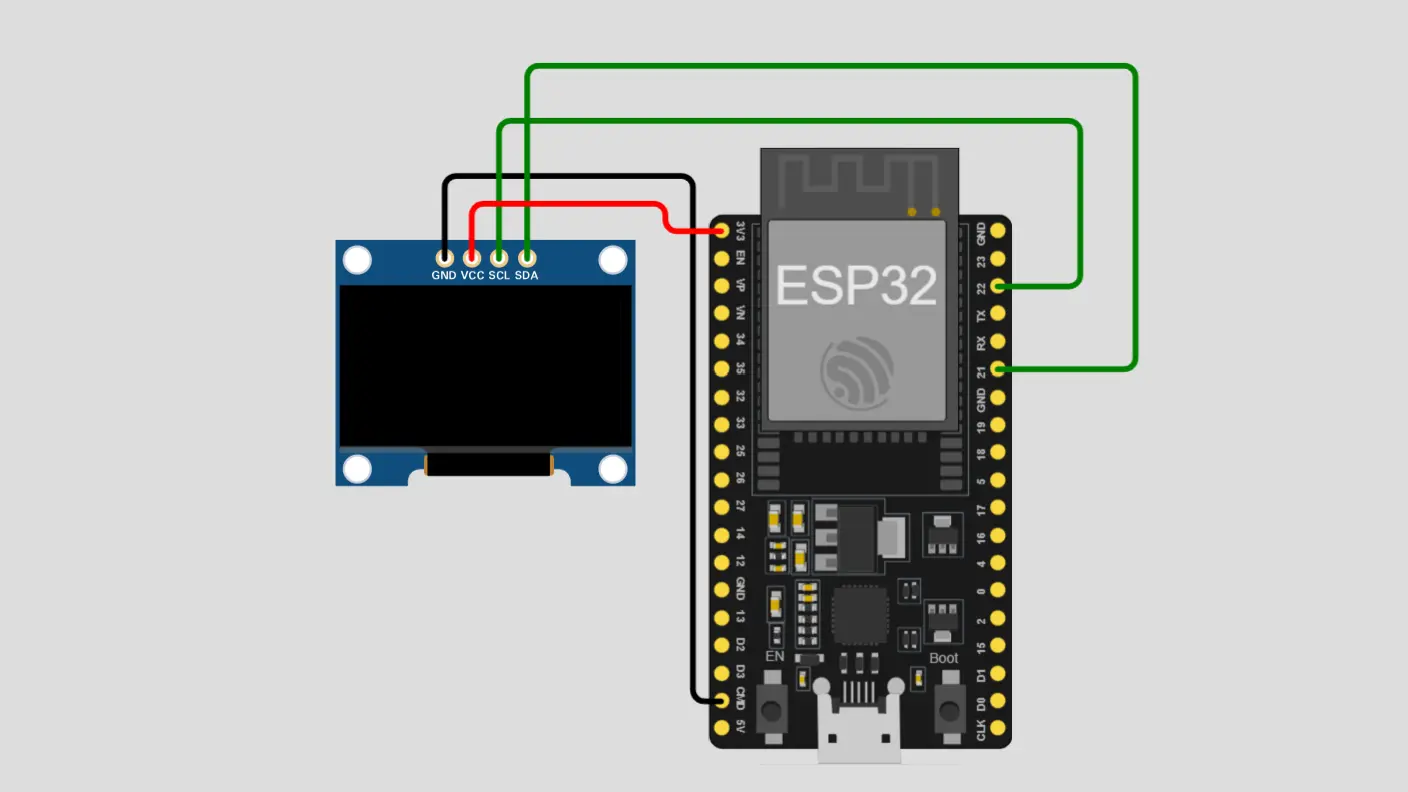 View full-size circuit ↗
YOUR PROJECT LEARNING PATH
Build it with confidence.
Project overview
Know what you’re building before you start wiring.
Build an interactive drawing pad using an ESP32 and a 128×64 SSD1306 OLED display. The device combines wireless connectivity, browser-based drawing, embedded graphics, and accessible handwriting interaction for beginners.
Handwriting strokes are submitted to a cloud recognition service. Supported letters, numbers, geometric shapes, and phrases can then appear on the OLED with appropriate formatting.
Disconnect USB power before changing wiring. Verify OLED voltage, ground connections, and GPIO assignments before powering the circuit.
Components required
Gather these parts before you begin.
Build the project
Work through one focused step at a time. You can revisit any step whenever you need.
Position the ESP32 and OLED Display
Place the ESP32 board and SSD1306 OLED securely on your work surface or breadboard, ensuring every connection remains accessible during assembly and testing.
Identify the display's VCC, GND, SDA, and SCL pins before wiring. Check the module labels to avoid incorrect power connections.
Connect the Display Power and Ground
Connect OLED VCC to the ESP32 3.3V output and OLED GND to the ESP32 ground pin using secure jumper connections for reliable operation.
Inspect both power connections carefully. Confirm that your particular OLED module supports the selected supply voltage before reconnecting USB power.
Connect the OLED I2C Communication Pins
Connect OLED SDA to ESP32 GPIO 21 and OLED SCL to GPIO 22, matching the project's stated I2C configuration for reliable display communication.
Check all four display connections for loose wires, incorrect pin placement, or accidental shorts before powering the assembled circuit.
Install Libraries and Configure WiFi Settings
Install Arduino IDE, the ESP32 board package, Adafruit GFX, and Adafruit SSD1306 through their appropriate installation tools before compiling your project.
Enter your WiFi credentials in the project sketch, select the correct ESP32 board and port, then compile and upload the firmware.
Open and Test the Browser Drawing Interface
Open Serial Monitor at 115200 baud and check connection messages. Use the reported IP address to open the drawing interface and begin testing recognition.
Draw supported letters or shapes on the canvas. Successful recognition requires internet connectivity and a correctly configured cloud recognition service.
Software & tools
Install these before uploading the firmware.
Expected output
Compare your build with the result described here.
After startup, the Serial Monitor reports connection status and the ESP32 IP address. Opening that address in a connected browser should load the interactive drawing canvas with its drawing controls.
Draw supported handwriting on the canvas. When cloud recognition and firmware processing succeed, recognized letters, numbers, phrases, or geometric graphics appear on the OLED display, formatted according to the recognized result.
Troubleshooting & fixes
Choose the issue that best matches what you’re seeing.
01OLED display remains blank or unresponsive
Check VCC, GND, SDA, and SCL wiring against the circuit configuration. Verify GPIO assignments, I2C address, display dimensions, installed libraries, and supply voltage. Review initialization messages to identify communication failures.
02WiFi connection or browser interface fails
Verify the configured WiFi name and password, check signal strength, and inspect Serial Monitor messages. Ensure the browser device can reach the ESP32 IP address and both devices can communicate on the network.
03Handwriting recognition returns no valid results
Confirm internet access and verify the recognition endpoint, request format, and required authentication. Draw clear strokes, inspect browser errors, and check whether the firmware accepts returned candidates against its supported-token list.