ESP32 OLED Car Racing Game
Wiring Schematic
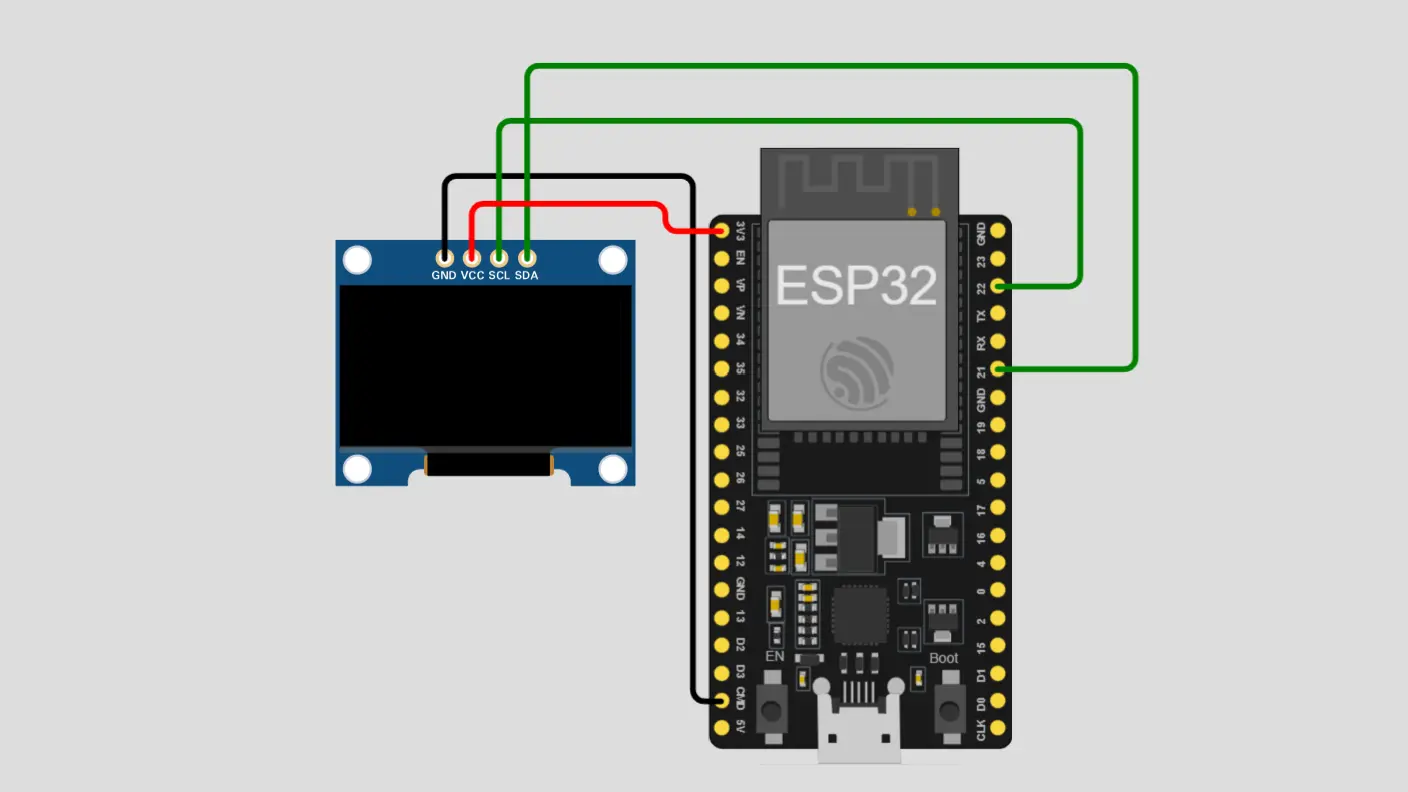 View full-size circuit ↗
YOUR PROJECT LEARNING PATH
Build it with confidence.
Project overview
Know what you’re building before you start wiring.
Build a Wi-Fi-controlled car racing game using an ESP32 development board and a 128×64 SSD1306 OLED display. Control steering, acceleration, and braking from a phone or computer through a responsive browser interface.
The game includes rear and top views, enemy cars and scooters, collision detection, scoring, variable speed control, and automatic OLED address detection. WebSocket controls work locally without internet access or an external router.
Disconnect USB power before wiring. Use a compatible SSD1306 display and check all I2C connections before powering.
Components required
Gather these parts before you begin.
Build the project
Work through one focused step at a time. You can revisit any step whenever you need.
Prepare the ESP32 and OLED Display
Disconnect USB power and place the ESP32 development board and OLED display on a stable surface. Identify the display pins carefully and inspect the wiring before beginning assembly.
The README specifies a 128×64 SSD1306 I2C display. The supplied circuit image shows the same display and lists no separate sensors or actuators.
Connect the OLED Using I2C
Connect OLED VCC to ESP32 3.3V, GND to GND, SDA to GPIO 21, and SCL to GPIO 22. Verify each connection against the supplied diagram before reconnecting USB power.
The firmware tries I2C addresses 0x3C and 0x3D during startup, then displays an OLED self-test before starting its Wi-Fi access point.
Connect to the ESP32 Wi-Fi Network
Power the ESP32 and wait for its access point to start. Connect your phone or computer to ESP32-CarGame-v4 using the password configured in firmware, then open the controller address in a browser.
The default password is 12345678, and the controller address is 192.168.4.1. No internet connection or external router is needed for gameplay.
Install Libraries and Upload Firmware
Install Arduino IDE, the ESP32 board package, ESPAsyncWebServer, AsyncTCP, Adafruit GFX, and Adafruit SSD1306. Keep espsupercarv7.ino, car_bitmaps.h, and sprites.h together in the same sketch folder before compiling and uploading firmware.
Select the correct ESP32 board and serial port, upload the sketch, and open Serial Monitor at 115200 baud to check OLED and network startup messages.
Drive and Explore Both Camera Views
Open the browser controller in landscape orientation. Drag the steering wheel to change direction, hold the accelerator to increase speed, and hold the brake to reduce speed while watching the OLED game.
The pedals appear on the left and the steering wheel on the right. Use RESET to restart manually and CAM to switch between rear and top views.
Software & tools
Install these before uploading the firmware.
Expected output
Compare your build with the result described here.
After startup, the OLED performs a self-test, displays the Wi-Fi name and password, and shows the controller address. Connecting a phone or computer loads the steering wheel, accelerator, brake, reset, and camera controls.
The OLED shows the road, player car, enemies, speed, and score. Rear and top views differ; top view includes cars or scooters. Passing an enemy adds ten points; collisions show Game Over, followed by automatic reset after about three seconds.
Troubleshooting & fixes
Choose the issue that best matches what you’re seeing.
01OLED remains blank or initialization fails
Check VCC at 3.3V, GND, SDA on GPIO 21, and SCL on GPIO 22. Confirm the display uses an SSD1306 controller and has address 0x3C or 0x3D, then inspect Serial Monitor diagnostics.
02ESP32 Wi-Fi network or browser controller fails
Confirm the board starts its access point and connect to ESP32-CarGame-v4 using the configured password. Open 192.168.4.1 manually, then check WebSocket connection status and ensure the device remains connected to the ESP32 network.
03Steering or pedal controls respond incorrectly
Open the controller in landscape orientation. Drag the wheel horizontally and hold the pedals to send controls. If steering is reversed, change STEER_INVERT from 1 to -1 in the firmware and upload it again.