ESP32 OLED Dracula Lyrics Visualizer
Wiring Schematic
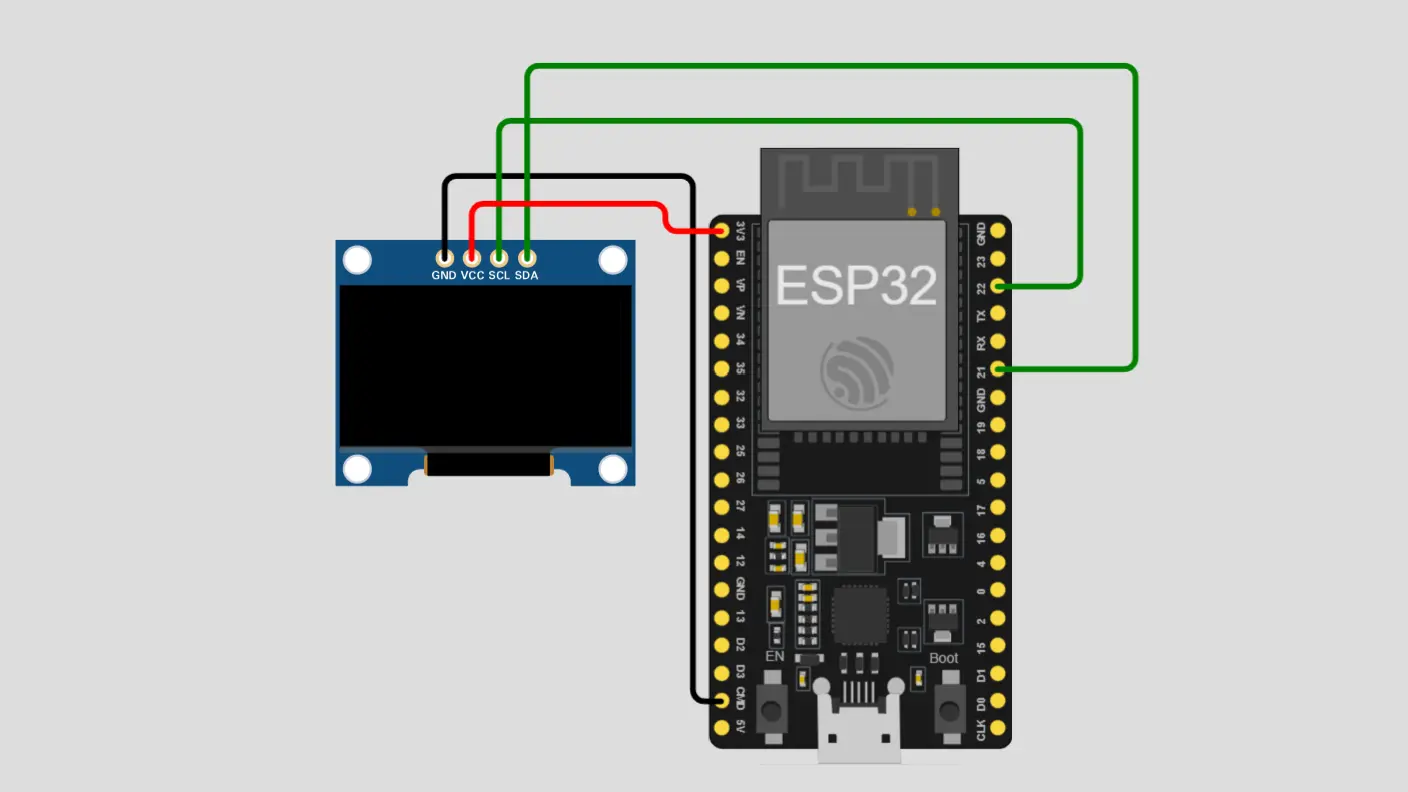 View full-size circuit ↗
YOUR PROJECT LEARNING PATH
Build it with confidence.
Project overview
Know what you’re building before you start wiring.
Build an ESP32-powered OLED lyrics visualizer that displays timed text animations on a 128×64 SSD1306 screen using I²C communication and lightweight animation sequences optimized for embedded hardware.
This guide covers wiring, software setup, and five practical build stages so you can assemble the display, upload your sketch, verify the animations, and customize timing and visual effects.
Disconnect USB power before changing wiring, and connect the OLED to 3.3 V only if its specific module is rated for that supply voltage.
Components required
Gather these parts before you begin.
Build the project
Work through one focused step at a time. You can revisit any step whenever you need.
Prepare the Board and Common Ground
Place the ESP32 and SSD1306 OLED near each other on the breadboard. Connect the ESP32 GND pin and OLED GND pin to the common ground rail.
Check that both ground connections share the same electrical reference. Keep USB power disconnected while assembling the circuit to avoid accidental shorts.
Connect OLED Power Supply
Connect the OLED VCC pin to the ESP32 3.3 V output, provided the specific OLED module supports 3.3 V operation.
Check the module's voltage specification and confirm the VCC and GND wires are not reversed before reconnecting USB power.
Connect the I²C Data Line
Connect the OLED SDA pin to ESP32 GPIO 21. This data line carries display commands and pixel information between the microcontroller and OLED.
Inspect both ends of the jumper wire and confirm SDA reaches GPIO 21, not the neighbouring SCL pin or a power connection.
Connect the I²C Clock Line
Connect the OLED SCL pin to ESP32 GPIO 22. The clock line coordinates I²C data transfers between the ESP32 and the display module.
Verify that SDA and SCL are connected to their correct pins. Check the wiring against the actual board labels before uploading the sketch.
Verify Wiring and Upload the Sketch
Reconnect USB, select the correct ESP32 board and serial port in Arduino IDE, then compile and upload your verified Dracula lyrics visualizer sketch.
Confirm the OLED initializes and displays the intended animation sequence. If the screen remains blank, check power, the I²C address, GPIO assignments, and library installation.
Software & tools
Install these before uploading the firmware.
Expected output
Compare your build with the result described here.
After uploading the sketch, the SSD1306 OLED should initialize and display the programmed lyrics with the configured text animations, including typewriter, bounce, shake, or pop effects where implemented.
Verify that the words appear in the intended sequence and that the animation timing matches the values in your sketch. The sequence should restart only if the program is designed to loop.
Troubleshooting & fixes
Choose the issue that best matches what you’re seeing.
01OLED Display Remains Blank
Verify OLED VCC and GND connections, then confirm SDA and SCL match the GPIO assignments in the sketch. Check the display's I²C address using an I²C scanner and confirm the module supports the selected supply voltage.
02Text Appears Garbled or Clipped
Confirm the Adafruit GFX and SSD1306 libraries are installed correctly and the display is initialized at 128×64 resolution. Check text size, cursor positions, font settings, and display-buffer updates for incorrect rendering.
03Lyrics Timing Is Incorrect
Review the lyrics sequence timing values and confirm all delays or timestamps use consistent units. Check the animation duration calculations and ensure the program handles sequence transitions and restarts correctly.