ESP32 OLED Drawing Pad V1
Wiring Schematic
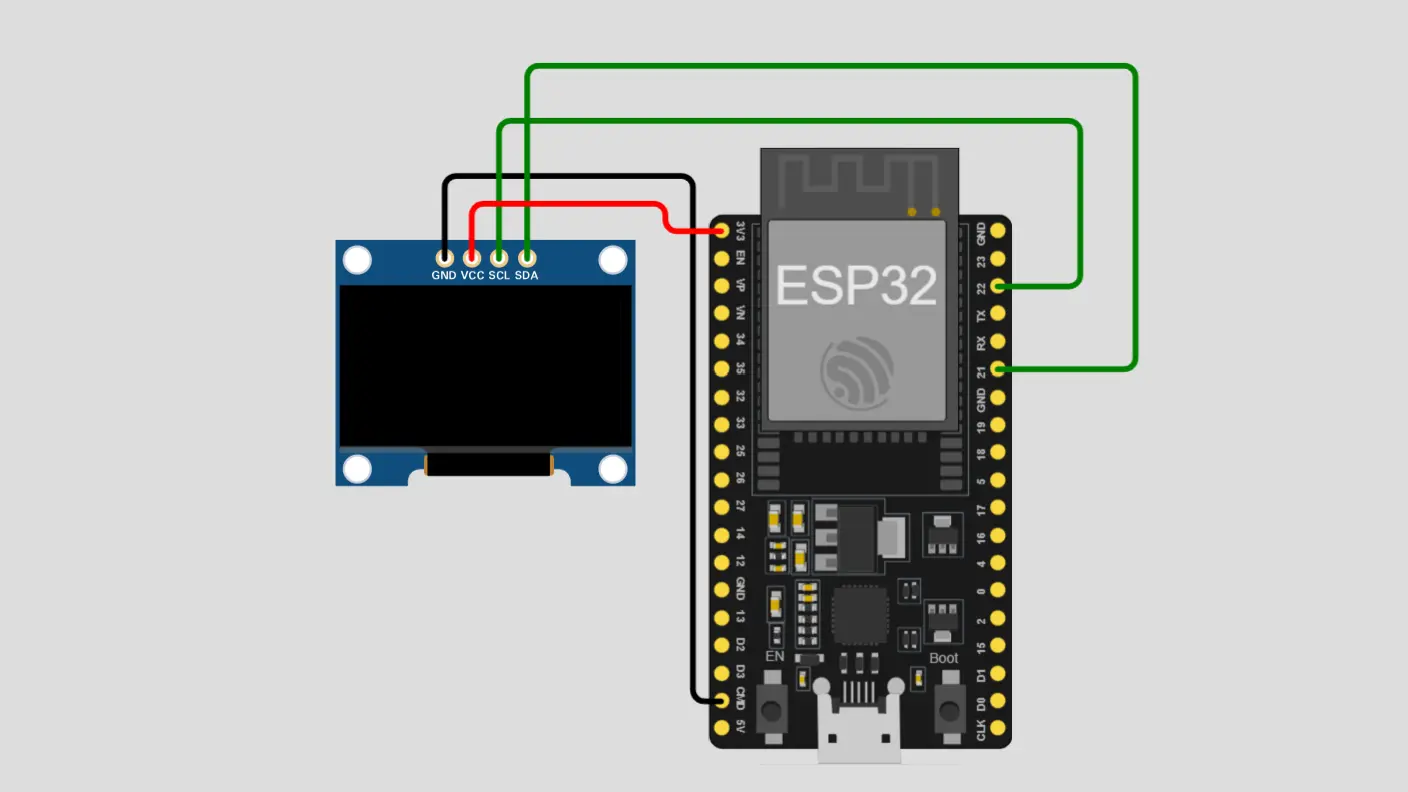 View full-size circuit ↗
YOUR PROJECT LEARNING PATH
Build it with confidence.
Project overview
Know what you’re building before you start wiring.
Build an ESP32-powered wireless drawing pad that lets you create freehand artwork through a browser interface and display it in real time on a 128×64 SSD1306 OLED.
Follow this guide to wire the display, install the required software, connect to the OLED-Draw Wi-Fi network, and use the browser canvas to draw, adjust brush size, and clear artwork.
Disconnect USB power before changing circuit connections, and connect the OLED to 3.3 V only if your specific display module supports that supply voltage.
Components required
Gather these parts before you begin.
Build the project
Work through one focused step at a time. You can revisit any step whenever you need.
Prepare the ESP32 and OLED
Disconnect USB power and position the ESP32 and SSD1306 OLED on the breadboard. Identify the display's VCC, GND, SDA, and SCL pins before wiring.
Check the pin labels on your actual modules because their physical order can vary. Keep the connections accessible so you can inspect them before applying power.
Connect OLED Power and Ground
Connect OLED VCC to the ESP32 3.3 V output and OLED GND to ESP32 GND, provided the specific display module supports 3.3 V operation.
Verify the power polarity and ensure the ground connection is secure. Keep USB power disconnected until you have checked the connections against the module labels.
Connect the I²C Data Line
Connect the OLED SDA data pin to ESP32 GPIO 21. This line transfers display commands and drawing data between the microcontroller and OLED.
Trace the SDA wire at both ends and confirm that it reaches GPIO 21 rather than SCL or a power connection. Secure the jumper before continuing.
Connect the I²C Clock Line
Connect the OLED SCL clock pin to ESP32 GPIO 22. The clock line synchronizes I²C communication between the ESP32 and the display module.
Verify that SDA and SCL are not swapped and that the sketch uses these GPIO assignments. Check the completed wiring before reconnecting USB power.
Upload and Test the Drawing Pad
Install the required libraries, select your ESP32 board and serial port in Arduino IDE, then compile and upload the verified drawing-pad sketch.
Confirm that the OLED initializes and the OLED-Draw access point appears. Connect a phone or computer to the network and open the configured drawing-interface address to test drawing and clearing.
Software & tools
Install these before uploading the firmware.
Expected output
Compare your build with the result described here.
After uploading the sketch, the ESP32 should start the OLED-Draw Wi-Fi access point and initialize the OLED display with connection information for accessing the browser drawing interface.
Open the configured interface on a connected phone or computer, draw on the canvas, adjust the brush size, and clear the artwork. Verify that drawing changes appear on the OLED as intended.
Troubleshooting & fixes
Choose the issue that best matches what you’re seeing.
01OLED Display Remains Blank
Verify OLED VCC and GND connections, then check SDA on GPIO 21 and SCL on GPIO 22. Confirm the display's I²C address and initialization settings, and verify that the module supports the selected supply voltage.
02OLED-Draw Wi-Fi Network Is Missing
Check the serial-monitor output for startup or Wi-Fi access-point errors. Confirm that the sketch successfully starts the access point and that your device is searching for OLED-Draw. Restart the ESP32 and wait for initialization to finish.
03Browser Drawing Does Not Reach the OLED
Confirm that the browser connects to the correct interface and that WebSocket communication is established. Check the drawing-command handler, canvas-to-display coordinate scaling, pixel-buffer updates, and OLED refresh function to identify where drawing updates stop.