ESP32 Smart Battery Dashboard V3
Wiring Schematic
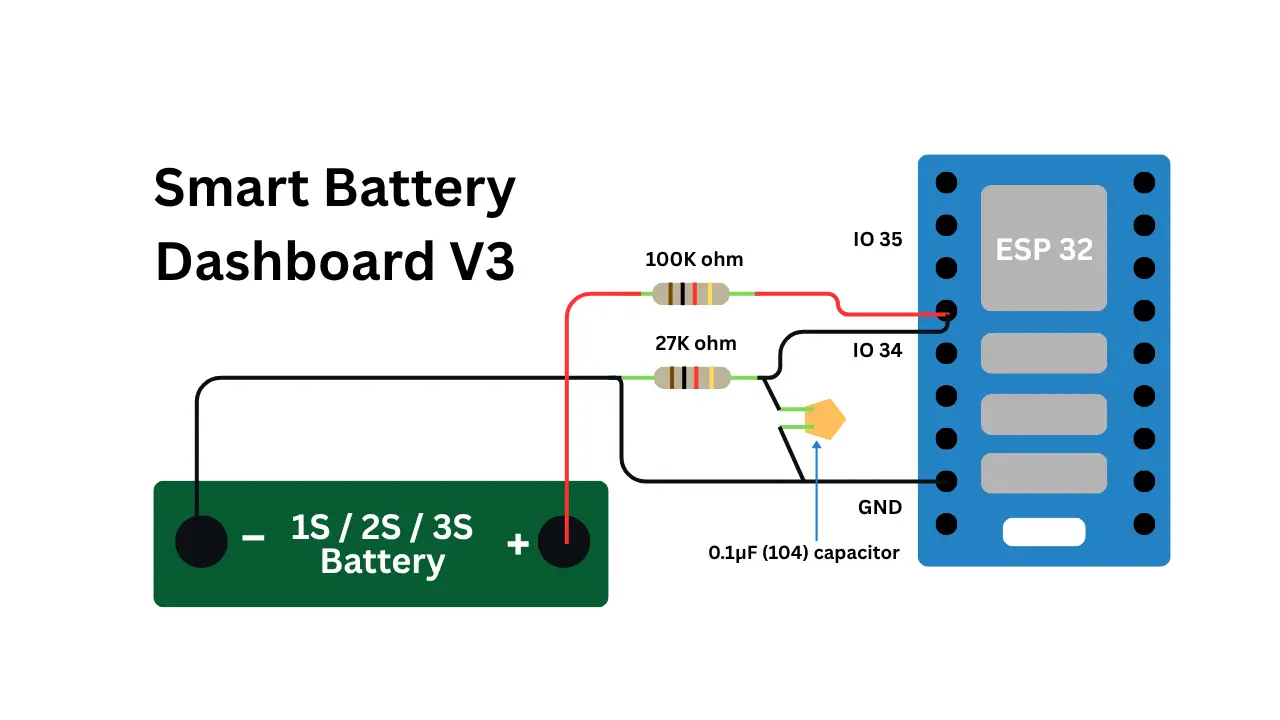 View full-size circuit ↗
YOUR PROJECT LEARNING PATH
Build it with confidence.
Project overview
Know what you’re building before you start wiring.
Build a multi-cell battery monitor using an ESP32 and a resistor-divider circuit for 1S, 2S, and 3S Li-ion packs. It estimates battery percentage and displays live readings through a local Wi-Fi dashboard.
The dashboard includes selectable cell modes, battery-presence detection, voltage history, minimum and maximum readings, averages, session statistics, trend indicators, and activity logs. Charging and discharging states are inferred from voltage changes.
Use suitable battery protection and prevent shorts. Verify divider wiring and keep GPIO 34 within safe ADC input limits.
Components required
Gather these parts before you begin.
Build the project
Work through one focused step at a time. You can revisit any step whenever you need.
Prepare the ESP32 and Battery Circuit
Place the ESP32 and battery pack on a stable, nonconductive surface. Disconnect power during assembly, inspect terminals for damage, and prepare wiring before constructing the battery-voltage monitoring circuit.
Use a suitable 1S, 2S, or 3S Li-ion pack. The ESP32 measures voltage through GPIO 34 and provides the dashboard using its built-in Wi-Fi.
Build the Battery Voltage Divider
Connect battery positive through the 100kΩ resistor to a sensing junction, then connect that junction to GPIO 34 and through the 26.2kΩ resistor to ground for divided ADC measurement.
The firmware uses a divider ratio of approximately 4.8168. At 12.6 V, the junction voltage is approximately 2.62 V; verify the actual output before connecting GPIO 34.
Connect the Capacitor and Shared Ground
Connect one side of the 0.1µF capacitor to the GPIO 34 divider junction and the other to ground for ADC noise filtering. Join battery negative to ESP32 GND to establish a shared reference.
The uploaded diagram shows a 27kΩ resistor and a connection toward GPIO 35. Correct the diagram to match the firmware's 26.2kΩ resistor and GPIO 34 divider junction before publishing.
Install Arduino Software and Configure Wi-Fi
Install Arduino IDE and the ESP32 board package, then open the provided sketch. The firmware uses built-in Wi-Fi and WebServer libraries and creates a local access point without requiring a router.
The default network is Lifetronix Battery V3 with password 12345678. Change the default password before sharing the project or deploying the monitoring device.
Open the Dashboard and Select Battery Mode
Upload the sketch, open Serial Monitor at 115200 baud, and connect your phone or computer to the ESP32 access point. Visit the printed IP address to load the dashboard in your browser.
Select 1S, 2S, or 3S to match your pack. Review voltage, estimated percentage, trend-based power state, history, session analytics, and battery events.
Software & tools
Install these before uploading the firmware.
Expected output
Compare your build with the result described here.
After upload, Serial Monitor at 115200 baud shows the access-point name, password, and IP address. Connect your phone or computer to the ESP32 network, then open the displayed address in a browser.
The dashboard shows voltage, estimated percentage, selectable cell modes, battery-presence status, voltage history, minimum and maximum readings, averages, session runtime, voltage trends, stability, and recent events. Charging status is inferred from voltage changes rather than a dedicated sensor.
Troubleshooting & fixes
Choose the issue that best matches what you’re seeing.
01Battery voltage or percentage appears incorrect
Check the 100kΩ and 26.2kΩ divider wiring and select the correct cell mode. Compare the GPIO 34 voltage with a multimeter and verify the firmware's divider ratio against the actual resistor values.
02Dashboard does not open or Wi-Fi is missing
Confirm the ESP32 has started its access point and check Serial Monitor at 115200 baud. Connect to the exact network name and password, then open the IP address printed during startup.
03Charging or discharging status appears wrong
The firmware infers power state from voltage changes across recent graph samples rather than a dedicated charger-status input. Allow readings to stabilize and remember that voltage trends alone cannot confirm active charging.