ESP32 Wi-Fi RGB Controller V1
Wiring Schematic
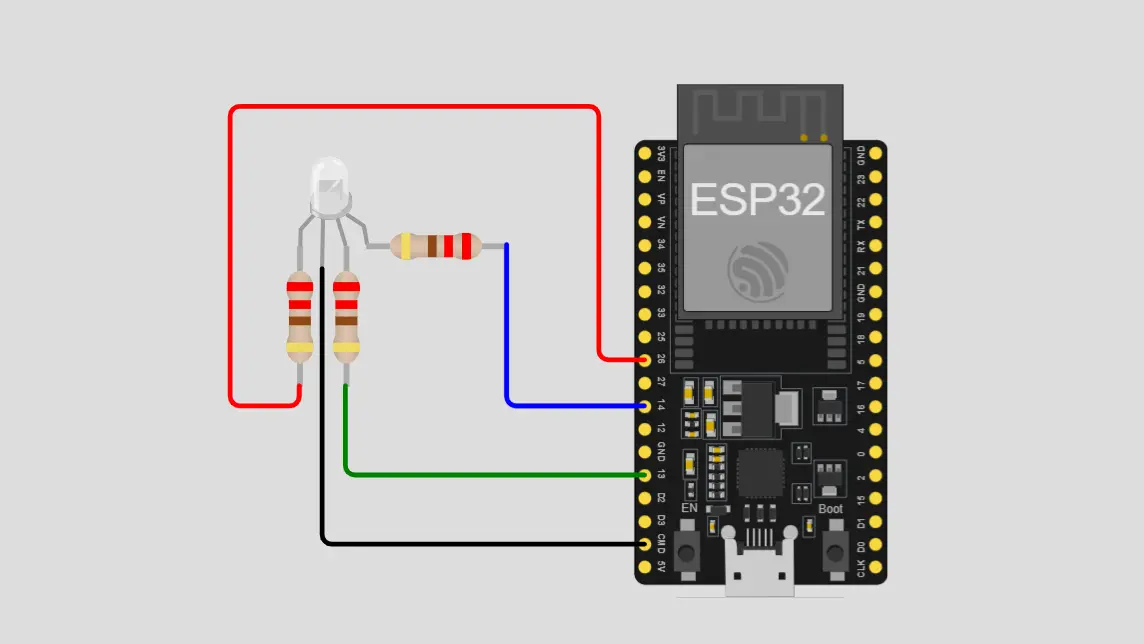 View full-size circuit ↗
YOUR PROJECT LEARNING PATH
Build it with confidence.
Project overview
Know what you’re building before you start wiring.
Build a wireless RGB LED controller using an ESP32 development board for practical home automation and interactive electronics learning. Adjust individual color channels through a responsive browser interface from compatible devices on your Wi-Fi network.
The ESP32 hosts a web server that receives color commands and converts them into PWM signals controlling LED brightness. Live HEX values, visual previews, and preset buttons make color selection easier.
Disconnect USB power before rewiring. Use a separate current-limiting resistor for each LED channel and verify polarity before powering.
Components required
Gather these parts before you begin.
Build the project
Work through one focused step at a time. You can revisit any step whenever you need.
Prepare the ESP32 and RGB LED
Disconnect USB power and position the ESP32 and common-cathode RGB LED securely on the breadboard, leaving enough room to place resistors and reach every connection during assembly and testing.
Identify the common-cathode pin and individual red, green, and blue pins. Check the LED datasheet or pinout before making connections.
Connect the Shared Ground Reference
Connect ESP32 GND to the breadboard ground rail to establish a shared electrical reference and provide a reliable return path for the RGB LED circuit during normal operation.
Connect the RGB LED's common-cathode pin directly to ground, not through a shared resistor. Confirm the LED pinout before applying power.
Wire the Three RGB Color Channels
Connect the red, green, and blue LED pins through separate 220-ohm resistors to ESP32 GPIO 26, GPIO 13, and GPIO 14 respectively, enabling independent brightness control for each channel.
Use one resistor per color channel and verify that each GPIO connection matches the firmware. Check for loose wires or accidental shorts before restoring power.
Install Arduino Software and Configure Wi-Fi
Install Arduino IDE and the ESP32 board package, then confirm that Wi-Fi and WebServer libraries are available in the selected platform before compiling, uploading, and testing firmware.
Enter your Wi-Fi credentials in the code, select the correct ESP32 board and serial port, then compile and upload the project firmware.
Open and Test the RGB Controller
Open Serial Monitor at 115200 baud and wait for Wi-Fi connection messages. Copy the reported IP address into a browser on the same network to load the controller interface.
Move the red, green, and blue sliders or choose a preset. The LED should change color while the interface updates its preview and HEX value.
Software & tools
Install these before uploading the firmware.
Expected output
Compare your build with the result described here.
After uploading the firmware, open Serial Monitor at 115200 baud and observe connection messages. When the ESP32 joins Wi-Fi, note its local IP address for access from a browser on the same network.
The webpage shows red, green, and blue sliders, a live color preview, HEX value, and preset buttons. Adjusting sliders changes LED brightness and combines channels to create new colors in real time.
Troubleshooting & fixes
Choose the issue that best matches what you’re seeing.
01RGB LED remains off or shows incorrect colors
Check common-cathode polarity and ground wiring. Confirm each channel has its own resistor and GPIO 26, 13, and 14 match the sketch. Inspect the LED pinout and connections for loose wires.
02ESP32 fails to connect to Wi-Fi
Check the network name and password, including capitalization. Confirm the network is available and within range, restart the board, and review Serial Monitor messages for connection errors or a missing IP address.
03Web sliders fail to change LED colors
Confirm the browser and ESP32 share the same Wi-Fi network. Verify the IP address, HTTP handler, RGB parameter parsing, and PWM pin assignments. Ensure received values reach the LED output functions correctly.